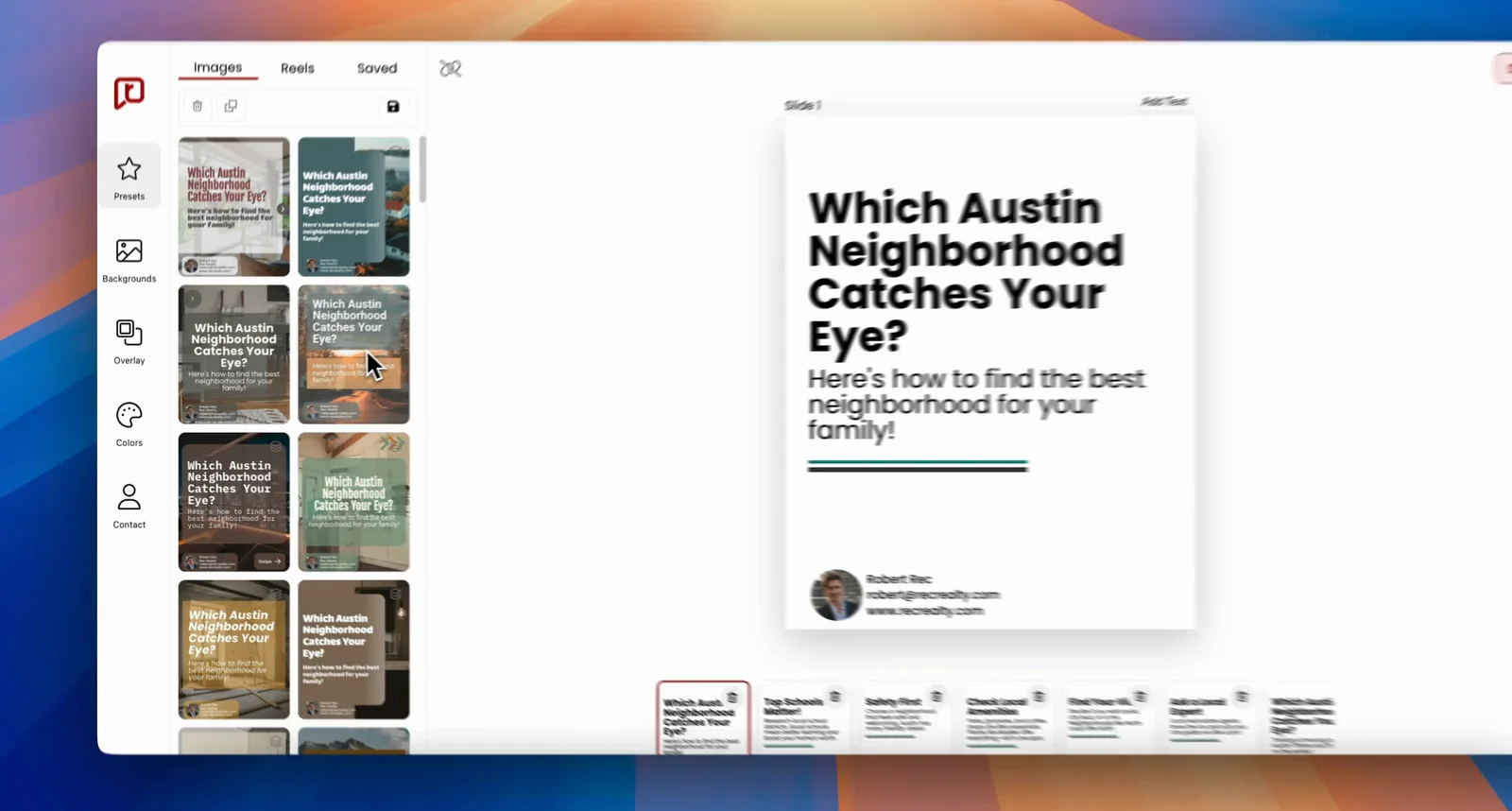
Elevate your social media posts by adding custom backgrounds on RealEstateContent.ai. Custom backgrounds can make your content stand out and align better with your brand’s aesthetics. Here’s a step-by-step guide on how to upload and use custom backgrounds for your posts.
How to Access Custom Backgrounds
Open an Existing Post:
Navigate to your content calendar and click on an existing post.
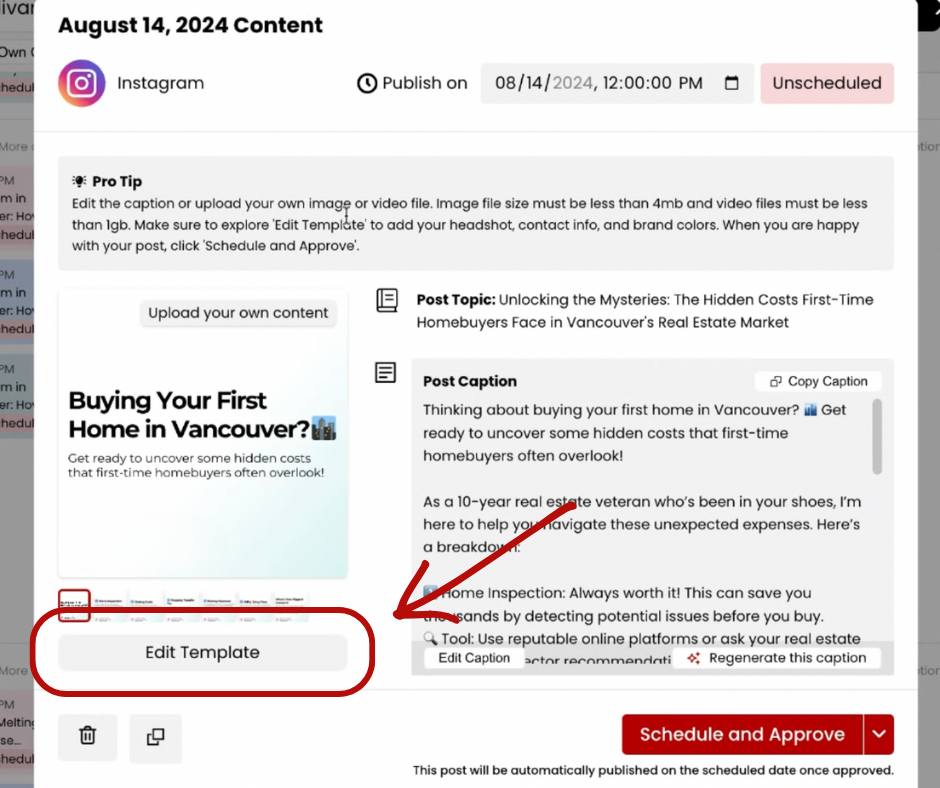
Click “Edit Template”
In the preview window of your selected post, click on “Edit Template” at the bottom.
Uploading a Custom Background
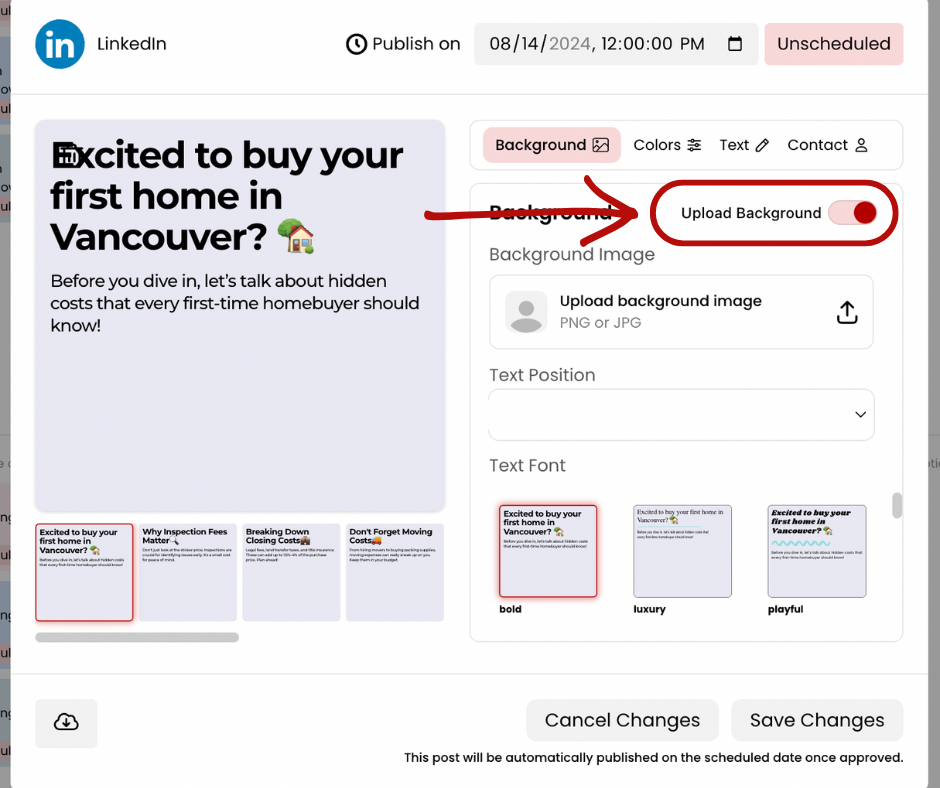
Locate the Upload Background Option:
-
- Click on “Upload Background” to open the custom background options
Upload Your Custom Image:
-
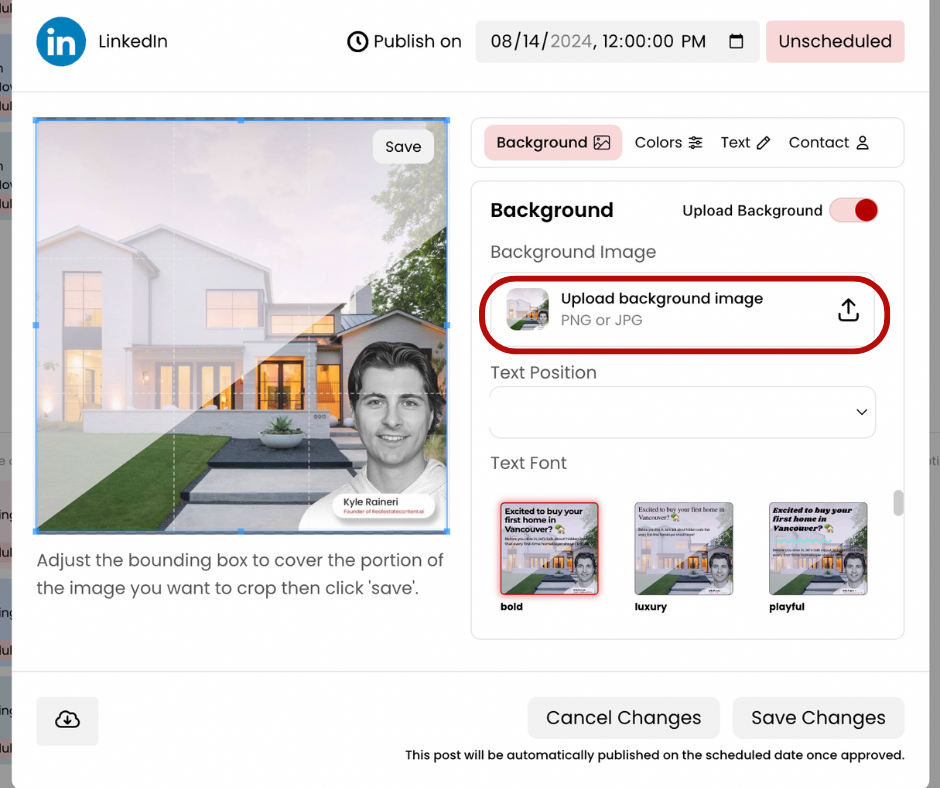
- Click on “Upload Background Image” and select an existing image from your files. This image could be something you’ve created using image editing software like Canva or a picture from your camera roll.
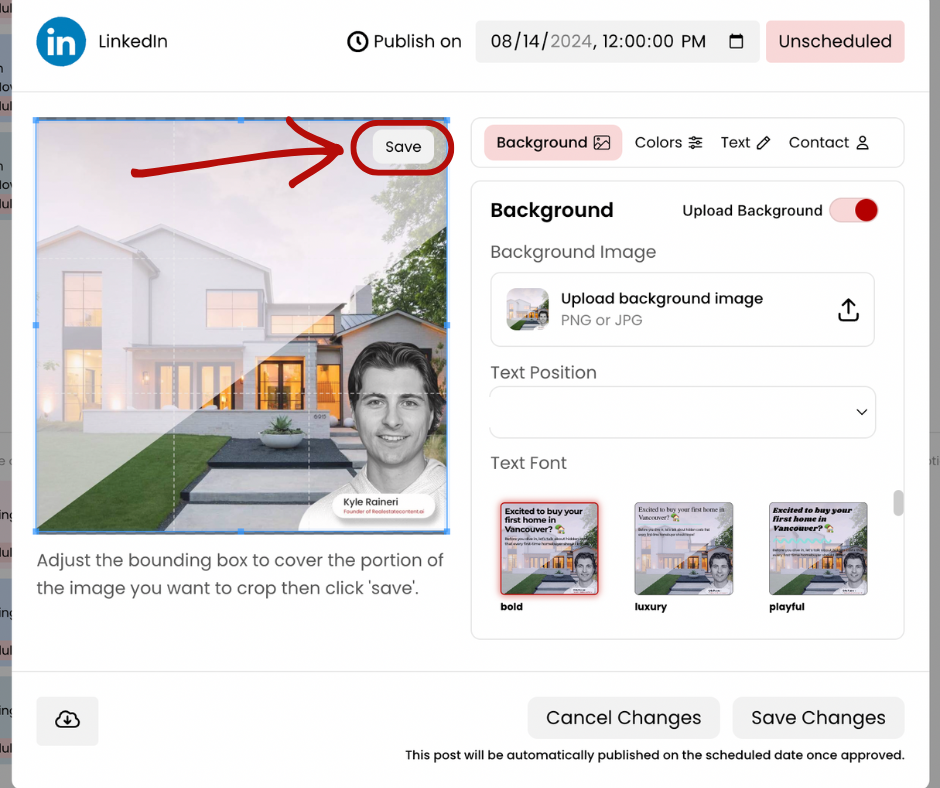
Save the Background:
-
- Click the “Save” button in the top right corner of the preview window to apply the text over your custom background.
Adjusting Text Position
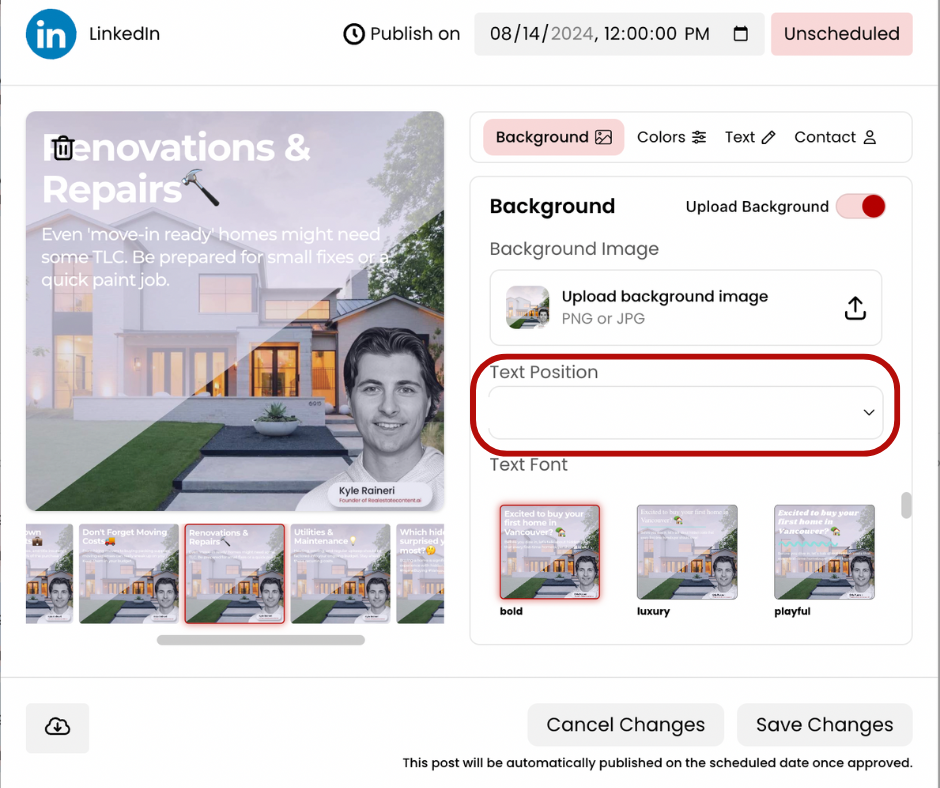
Move the Text:
-
- To ensure the text fits well with your new background, adjust its position. Use the dropdown menu under “Text Position” to find a location that suits your background.
Customizing Fonts
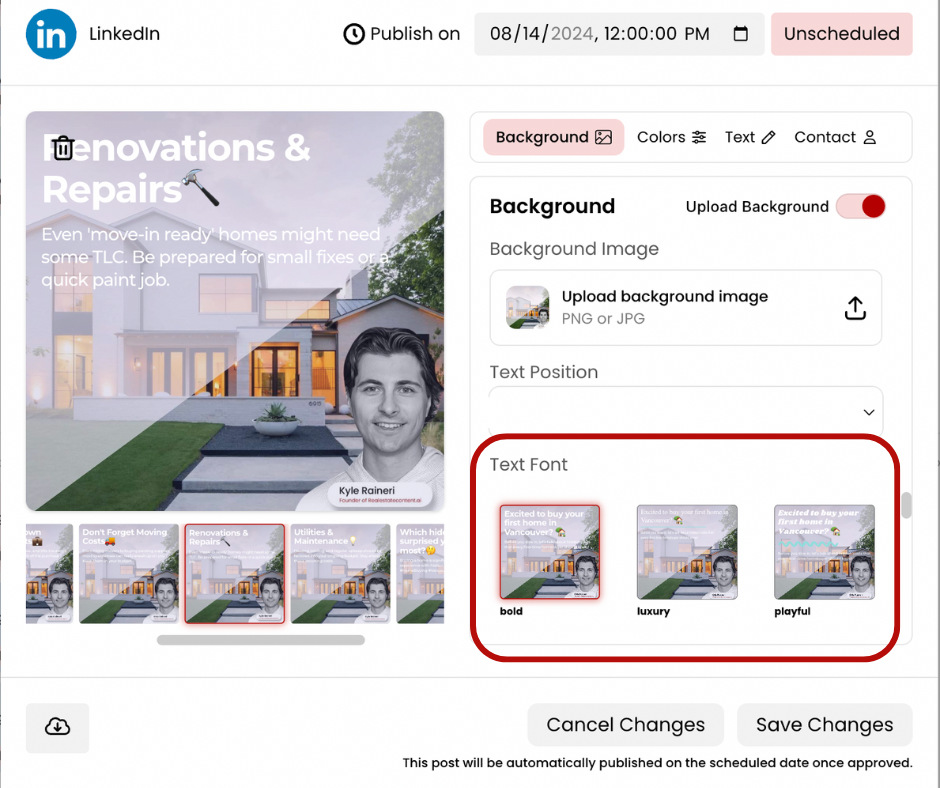
Choose a Font:
-
- Under “Text Font” Scroll through the font options available. Preview different fonts and select the one that best fits your background and overall design.
 Save Your Changes:
-
- After selecting the appropriate font and adjusting the text location, click on “Save Changes” to apply all these modifications to your post.
Tips for Effective Use
- High-Quality Images: Use high-resolution images for your backgrounds to ensure your posts look professional.
- Brand Consistency: Maintain consistent branding by using the same custom colors and similar themes for each post.
- Text Placement: Always check the readability of your text against the background. Adjust text colors and positions to enhance visibility.
Need Help?
Contact the RealEstateContent.ai team any time at support@realestatecontent.ai.
Ready to automate your social media using AI? Subscribe to RealEstateContent.ai today by clicking here.